Prepare product listing images
Isolate a shoe, bag, accessory, or other item for a product grid or promotional layout. Keep the full silhouette visible, including straps and handles that help shoppers recognize its shape.
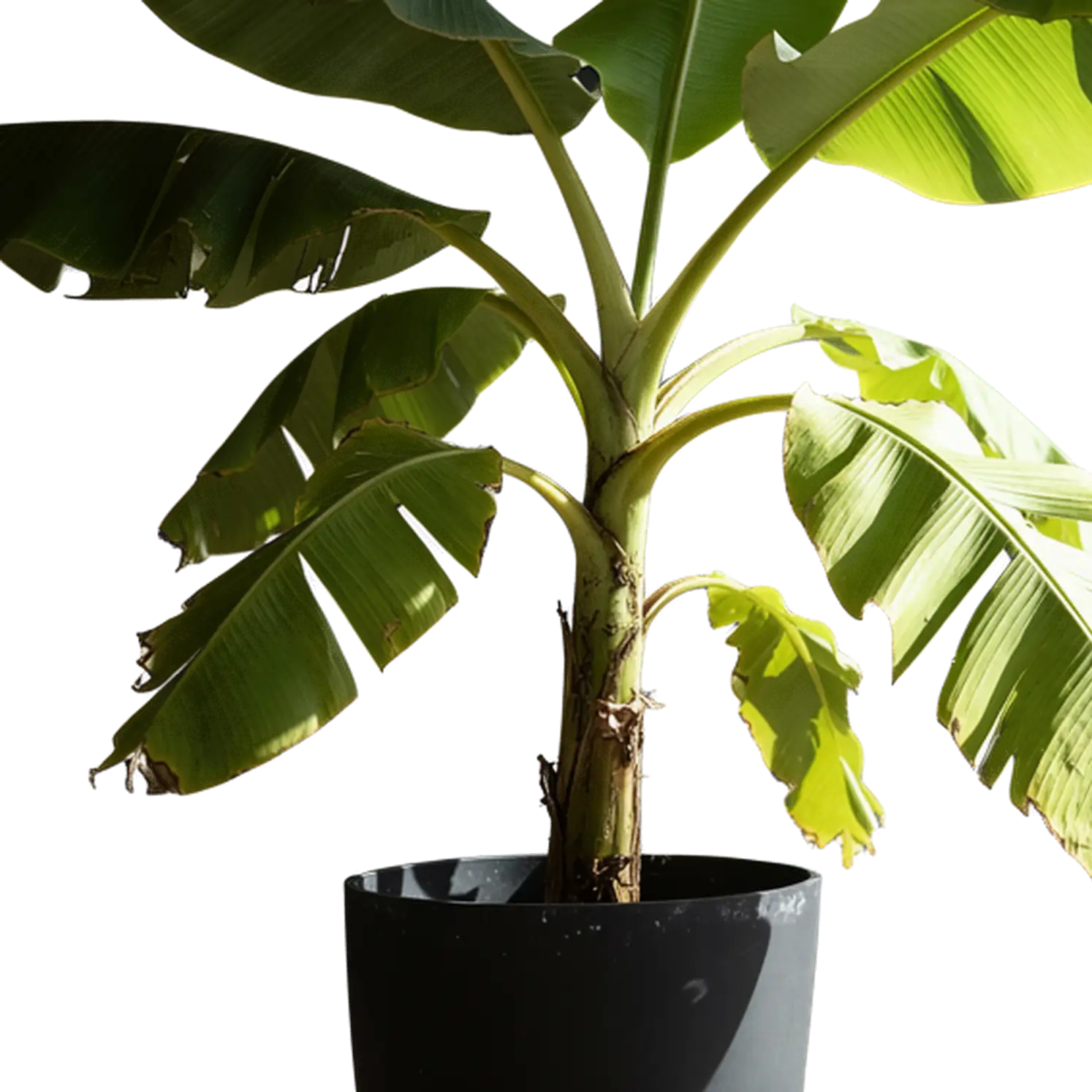
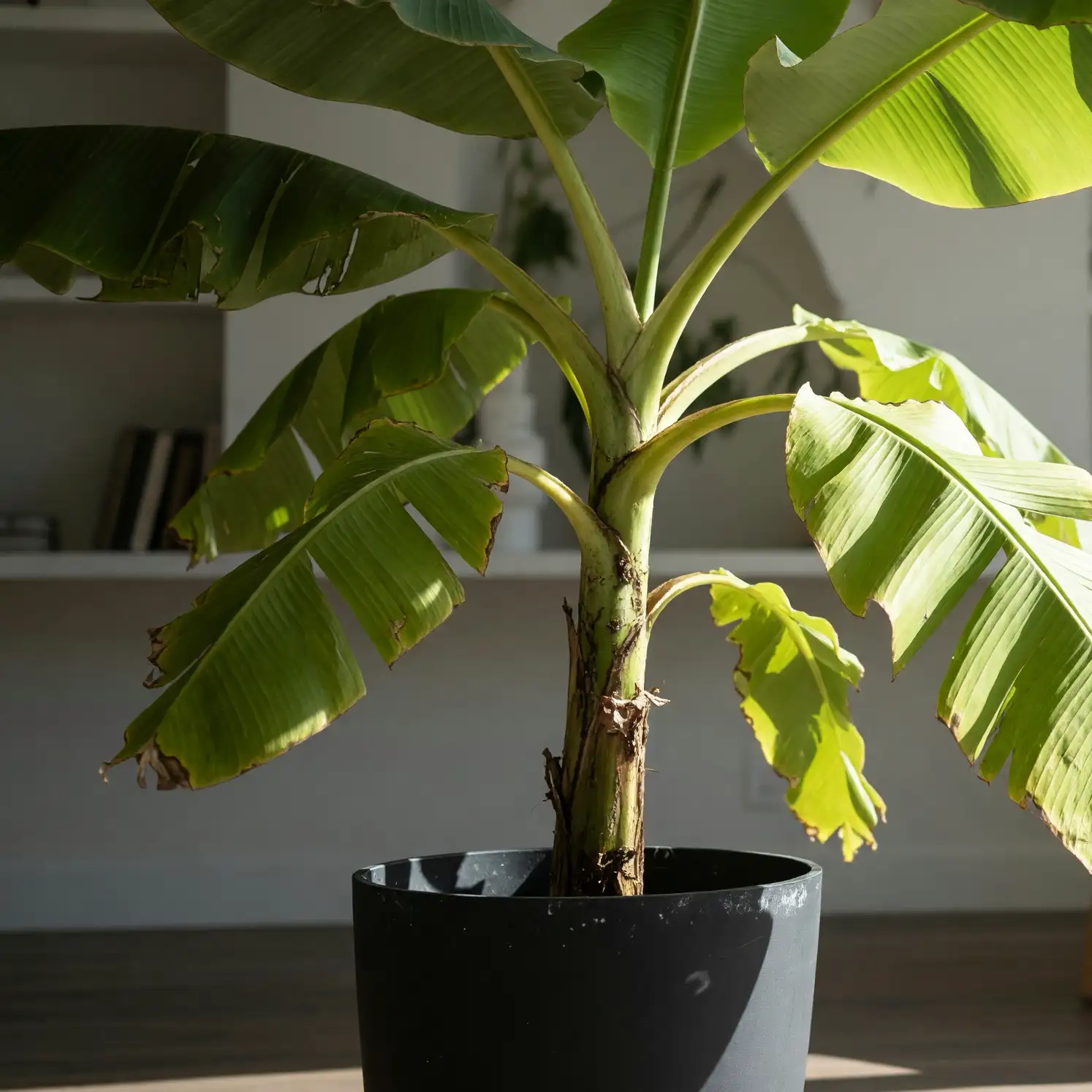
Remove the background from an existing image with Pixlr AI and download the subject with transparency. Create photo cutouts for product listings, profile designs, presentations, and collages without tracing the outline by hand.
Bring the photo you already have and prepare its subject for a different layout.
Choose a JPG, PNG, or WebP file up to 10 MB. A complete, clearly visible subject gives you more flexibility when placing the cutout later.
The tool separates the foreground from the surrounding scene automatically. You do not need to describe the subject or select its outline with a brush.
Check that the parts you need remain in the cutout, then download it. Add the file to your preferred design app to position it over a color, another photo, or a slide.
Reuse one subject across different designs without carrying its original surroundings into every layout.
Isolate a shoe, bag, accessory, or other item for a product grid or promotional layout. Keep the full silhouette visible, including straps and handles that help shoppers recognize its shape.
Separate a person or illustrated character for a profile graphic, presentation, or collage. Place the cutout beside text or other visual elements in the design application you already use.
Prepare a well-lit photo with the outlines you want to keep clearly visible. Use these tips to make background removal and the next layout work together.
Choose an in-focus photo where hair, fur, or feathered edges stand out from the background. Keep the full outline in the frame, then place the cutout over a color that complements the subject’s fine detail.
Use an angle that clearly shows the openings in a chair, a mug handle, or the space between an arm and a body. These gaps are part of the subject’s silhouette and let a new background show through when you place the cutout.
Photograph white products in even lighting against a background that makes their outline distinct. When arranging the cutout, try a contrasting color to highlight the item’s shape, pale edges, and surface details.
For glass or translucent objects, keep the outline, highlights, and surface details visible in the source photo. Place the cutout against a background whose colors and lighting suit the object.
The deciding factor is whether the subject already exists in the form you want.
Choose the background remover for a photographed product, a finished illustration, or a portrait. Its job is foreground separation, not a new interpretation of the subject.
Choose transparent image generation for a new sticker, decorative object, or character from text or a reference. It creates artwork rather than simply extracting pixels from a photo.
A transparent cutout gives you control over where the subject appears.
Build a product card with a consistent background color, position a portrait beside a heading, or arrange illustrations in a presentation. Match the cutout’s size to the layout and keep the downloaded transparent file for reuse.
For a generated scene, use the subject as an image reference and describe the surroundings you want. For an image-to-3D experiment, choose an object view that shows its shape clearly; a cutout is optional, not a requirement.
Answers about photo cutouts, transparent files, and choosing a suitable source.
Upload your photo to the Pixlr background remover, run background removal, and download the transparent result. Add the file to a design app and place it over a color, another photo, or a slide. Keep the downloaded cutout for reuse across your layouts.
Yes. Upload the image just as you would a photo with a colored background. Inspect pale product edges and soft shadows after removal, especially if the item and its original background have similar tones.
Some image viewers display transparency against white. Open the downloaded file over a colored layer to check. If a white rectangle still covers that layer, the background is part of the image or transparency was lost during export.
For a cleaner cutout around hair, start with a sharp portrait where the hair stands out from the background. Keep the full hairstyle in the frame and use even lighting to show the strands. Run the Pixlr background remover, then preview the transparent portrait against the background planned for your design.
Yes. Add the downloaded cutout over a new background in your design app. To generate a different environment around the subject, use the image generator with a reference and written instructions.
Yes. Get free background removal with Pixlr AI: upload your image, remove its surroundings automatically, and download the cutout for a product layout, profile design, or collage. No editing prompt is needed.
Upload an image to Pixlr AI and prepare its subject for your next layout.
Start Free