Describe a new PNG asset
Use text mode to request an object or illustration, such as a smiling peach sticker or a watercolor sprig. Specify its colors and style to create an element suited to your design.
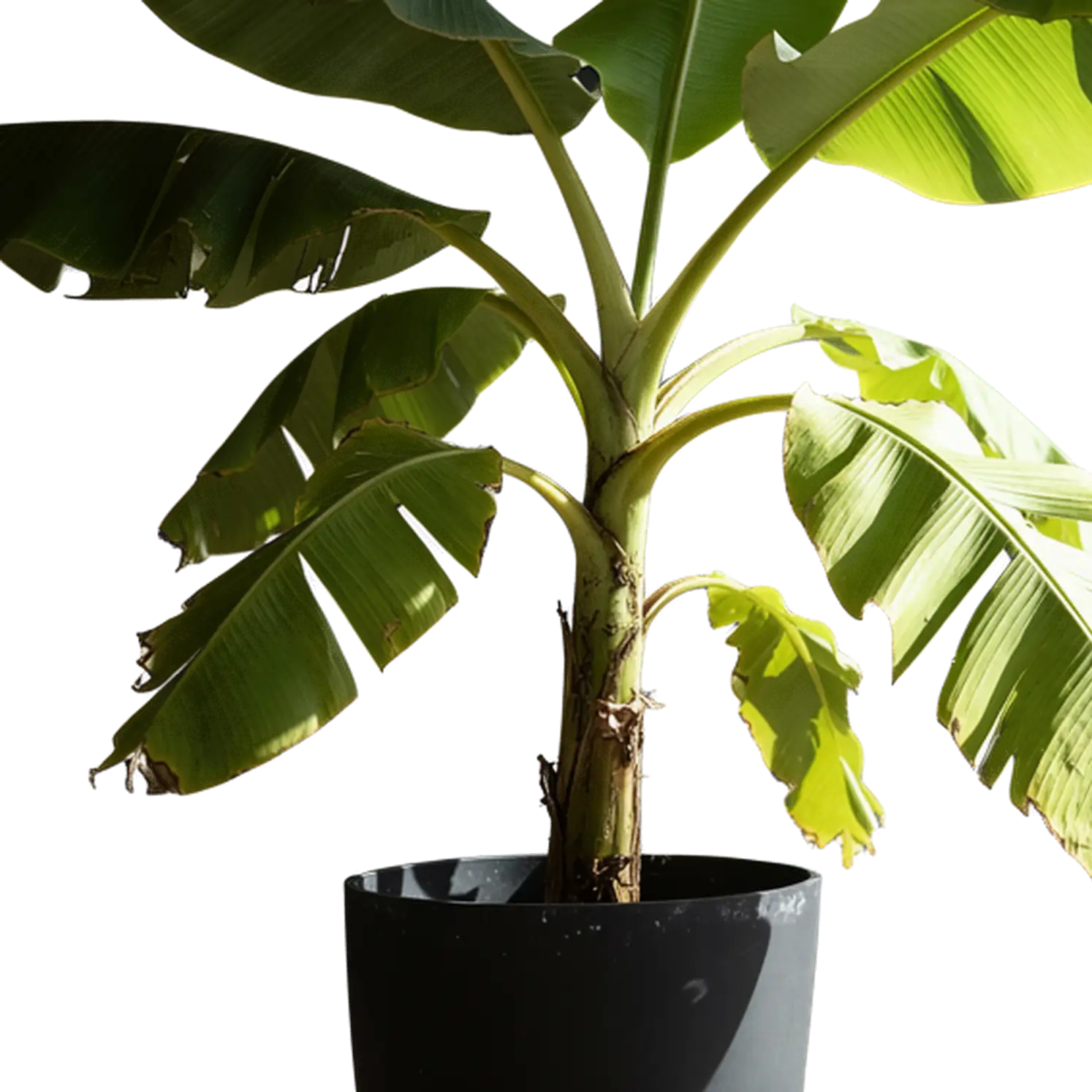
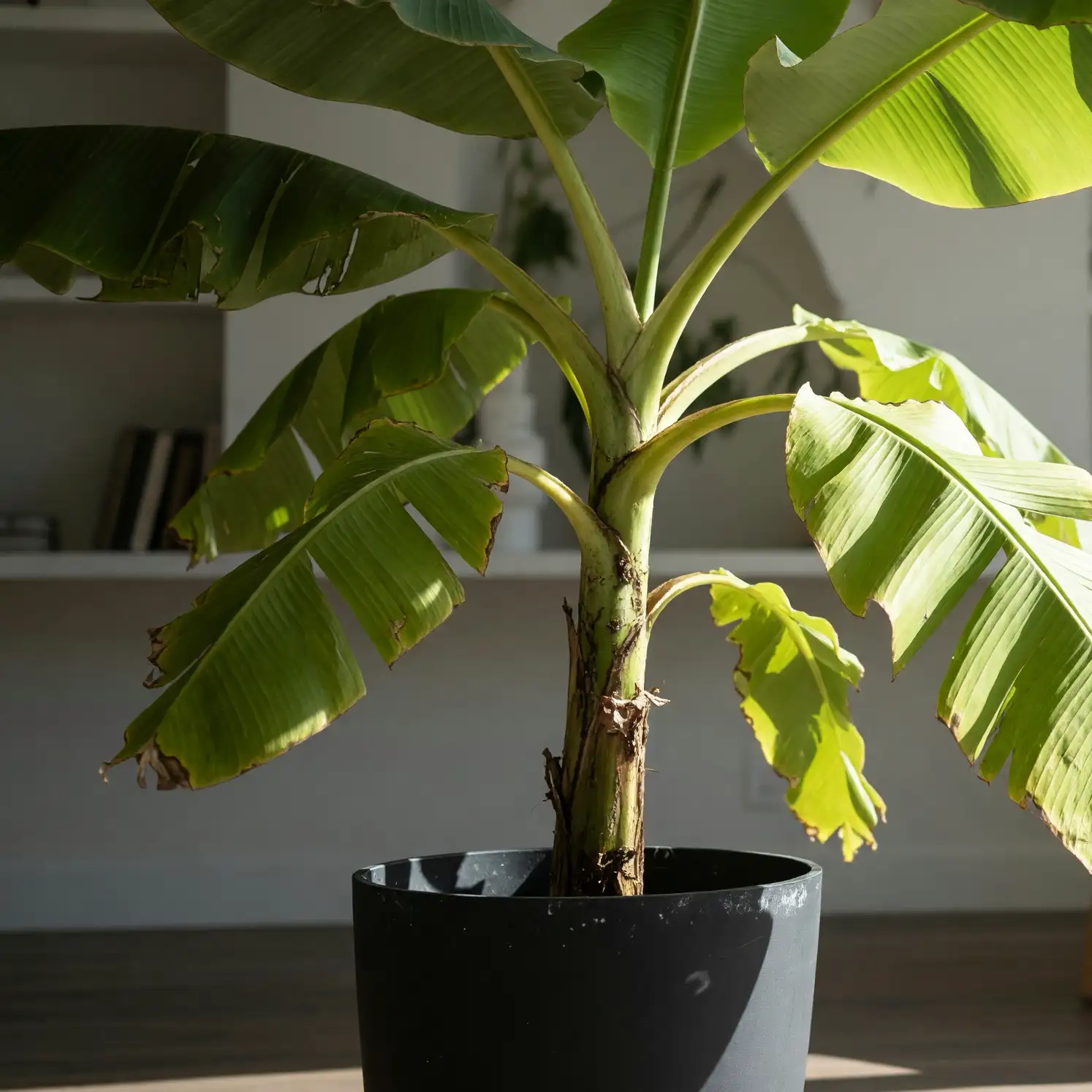
Create transparent images with Pixlr AI from a text description or a reference picture. Generate stickers, characters, and decorative artwork as PNG assets you can place over a design without a solid background.
Choose a starting point based on whether you already have a visual example of the asset you need.
Use text mode to request an object or illustration, such as a smiling peach sticker or a watercolor sprig. Specify its colors and style to create an element suited to your design.
Upload a picture in image mode to create a new transparent version inspired by its subject. Turn the reference’s shape and visual style into standalone artwork for a sticker, character design, or decorative element.
Both workflows produce an isolated subject, but the source and intended result are different.
Use this transparent PNG generator to create a new asset from words or develop a reference into original artwork. Build a sticker, character, or decoration that you can reuse across backgrounds, slides, and other designs.
If you already have the exact product photo, logo, or illustration you want, remove its background instead. That workflow keeps the existing foreground rather than asking for a newly generated version.
Remove the background from an existing image with PixlrIn text mode, describe the standalone element and how it should read in your layout.
Choose a recognizable subject and a simple pose. Describe whether you want a white sticker border or an unbordered edge so the result fits the visual style of your collection.
Ask for a complete figure when hands, feet, ears, or accessories need to remain visible. Choose a canvas shape that gives the character enough room without forcing a tight crop.
For a corner flourish, leaf cluster, or ribbon, describe the direction and overall shape. Keep the composition simple enough to remain readable when used at a small size.
Specify a front, side, or three-quarter view when the angle matters. A clear view of the object helps when placing it in a mockup or using it as a reference for another creative task.
Download the actual image file and check it in the layout where it will appear.
Import the PNG into a design application and position it above your background layer. The transparent areas should reveal the color or image beneath it.
Review the asset’s outline, small gaps, and any lettering after scaling it for your layout. Fine detail that looks good in a large preview may become hard to read in a small sticker or overlay.
Save the downloaded PNG separately from the finished composition. You can reuse it on another background later; a screenshot of the preview does not preserve the transparent file.
Create a reusable visual element instead of generating a whole scene for every placement.
Place a mascot beside a slide title, add a decorative element to a social graphic, or import a PNG as an overlay in your video editor. Generate a full background separately when the design needs a scene behind the asset.
Create a background imageUse a complete object illustration as a reference for a 3D model. Choose a view that clearly shows the shape, proportions, and how its parts connect, giving the next creative step a useful visual starting point.
Turn an object image into a 3D modelChoose the right input and understand the transparent assets you download.
Yes. Select text mode and describe the subject, its appearance, and the view you want. Pixlr AI creates a new image with a transparent background, ready to download as a PNG for your layout.
A transparent remake creates new artwork inspired by your uploaded picture. Background removal extracts the foreground already in the file. Choose the transparent PNG generator to develop a new asset from a reference, or removal to reuse an existing product photo or finished illustration.
Yes. Describe a sticker, character, or decorative element in text mode. State whether you want an outline or border, and keep the subject complete within the frame. Review the downloaded asset at the size it will appear in your design.
A checkerboard may be the viewer’s way of displaying empty space, or it may be painted into the image itself. Place the downloaded PNG over a solid-color layer. Real transparency reveals the layer beneath; a painted grid remains visible.
You download a PNG image with a transparent background. Import it into a design app, position it over another image or color, and scale it for a sticker, slide, or video overlay. Keep the original PNG separately so you can reuse the artwork in another composition.
Yes. Create a new asset with the free transparent PNG generator, using a text description or a reference picture. Download your PNG for a sticker, character graphic, slide, or video overlay.
Describe the asset you need or upload a reference to get started with Pixlr AI.
Start Free